Stop-Loss Guide
A stop loss can reduce risk, but it cannot guarantee your exit price or even guarantee that every share will sell. PolyBot can monitor the trigger and submit the order; only Polymarket's order book and available buyers determine what fills.
A stop loss is a trigger plus an execution attempt, not insurance and not a guaranteed maximum loss. In a fast or illiquid market, the final result can be a worse price, a partial fill, an open limit order, or no fill.
The 60-second explanation
There are three separate moments:
- Trigger: PolyBot observes that the best available bid has reached your stop level.
- Order submission: PolyBot validates your shares and sends a sell order to Polymarket.
- Fill: One or more buyers accept the sell through Polymarket's order book.
PolyBot controls the monitoring and submission logic. PolyBot does not control the buyers, available liquidity, order-book movement, Polymarket availability, or the final matching result.
| Stage | What PolyBot can do | What is not guaranteed |
|---|---|---|
| Monitor | Watch active stop losses and live best-bid updates | An uninterrupted third-party data or network connection |
| Trigger | Detect when the observed bid crosses the threshold and queue execution | That the same price still exists milliseconds later |
| Submit | Validate shares, retry certain failures, and send the selected order | Acceptance by Polymarket |
| Fill | Track and report the result | Price, quantity, timing, or a fill |
Order book, liquidity, and slippage
Understanding these three ideas explains most stop-loss complaints.
What is the order book?
Polymarket uses a central limit order book:
- Bids are prices buyers are currently offering.
- Asks are prices sellers are currently asking.
- The best bid is the highest current buying price.
- Depth is how many shares are available at each price.
PolyBot's stop-loss monitor uses the live best bid for your outcome. A chart may show a last trade, midpoint, or delayed display price, so a chart touching your number does not always mean the best bid used by the trigger touched it at the same moment.
What is liquidity?
Liquidity is the amount of buying and selling interest available near the current price. A liquid market can absorb a larger sell with little price movement. A thin market may have only a few buyers at each level.
Example order book:
| Buyers available | Bid |
|---|---|
| 50 shares | 40¢ |
| 100 shares | 38¢ |
| 200 shares | 34¢ |
If you try to sell 120 shares immediately, only 50 can trade at 40¢. The next 70 may trade near 38¢. Your average would be about 38.8¢ before fees. If those bids disappear first, the result can be worse.
What is slippage?
Slippage is the difference between the price you expected and the average price you actually received. It usually increases when:
- the position is large relative to order-book depth;
- the market moves quickly;
- the spread between bids and asks is wide;
- the event is near resolution or trading is interrupted;
- many sellers act at the same time.
How PolyBot works end to end
- You create a stop loss for an open position.
- PolyBot records it as Active and starts monitoring that outcome.
- Live order-book updates provide the current best bid.
- When the best bid is at or below the effective trigger price, PolyBot queues the stop loss.
- Before selling, PolyBot rechecks the stop, wallet, market, and available shares. Competing open sell orders may need to be canceled so those shares can be used.
- PolyBot submits either a market-style sell or a stop-limit sell.
- PolyBot records the result and sends a notification. Certain temporary failures are retried, but retries still cannot create liquidity or force a fill.
This design is multi-instance and retry-safe, but every external step still depends on Polymarket, the network, the wallet state, and the order book.
Trigger types
Fixed price
Choose the exact bid price at which monitoring should trigger.
Example: You bought at 50¢ and set 40¢. When the observed best bid reaches 40¢ or lower, PolyBot attempts execution.
Best when you already know the price level that invalidates your trade.
Percentage from entry
Choose a percentage decline from your average entry price.
Trigger price = entry price × (1 − percentage ÷ 100)
Example: Entry 50¢ with a 20% stop gives a 40¢ trigger.
Best when you want similar risk rules across positions with different entry prices.
Trailing stop
A trailing stop follows the highest observed price after it becomes active. You can trail by a percentage or by a fixed number of cents.
Example: You use a 10% trail. The observed high-water mark rises to 70¢, so the current floor becomes 63¢. If the best bid later reaches 63¢ or lower, execution is attempted.
The high-water mark can move upward, not downward. A trailing stop protects part of a favorable move, but its execution has the same liquidity and fill risks as any other stop loss.
Market stop vs stop-limit
The trigger logic is the same. The difference is what PolyBot submits after the trigger.
| Market stop | Stop-limit | |
|---|---|---|
| Main goal | Exit as soon as possible | Refuse to sell below a chosen price |
| After trigger | Attempts an immediate marketable sell against available bids | Places a limit sell at the configured trigger price |
| Possible result | Full fill, partial fill, delayed/pending result, or failure | Full fill, partial fill, or an open unfilled order |
| Price | Not guaranteed; can be below the trigger | Trigger price or better for shares that fill |
| Biggest risk | Slippage | Remaining in the position |
Market stop: execution first
Choose market mode when leaving the position matters more than the exact price. PolyBot submits against liquidity available at that moment. A large order may consume several bid levels, and a rapidly falling book may produce a much lower average price.
“Market” does not mean guaranteed. If there are no valid bids, too little balance, a market restriction, an upstream failure, or another rejection, some or all shares may remain.
Stop-limit: price first
Choose stop-limit mode when you will not accept a sale below the trigger price. Once triggered, PolyBot places a normal limit sell at that price.
If the market gaps from 41¢ to 35¢ while your limit is 40¢, buyers at 35¢ cannot fill your 40¢ order. The order can remain open while the position keeps losing value. A stop-limit therefore protects price only if it fills; it does not guarantee an exit.
Polymarket enforces minimum order sizes. If the remaining stop-limit quantity is below the platform's limit-order minimum, PolyBot may use best-effort market execution instead of placing an invalid limit order.
Which execution mode should I choose?
Choose market stop when:
- your priority is getting out;
- the order book has enough visible bid depth;
- you accept that the average fill can be worse than the trigger.
Choose stop-limit when:
- selling below the limit would be worse than keeping the position;
- you are prepared to monitor and manually adjust an open order;
- you understand that a fast drop can leave the entire order unfilled.
For a large position, first inspect bid depth. Splitting the position across levels can reduce the impact of one all-or-nothing decision, but it cannot remove market risk.
Set up a stop loss
- Open
/stoplossor tap Stop Loss in Telegram, or open All Tools → Stop Losses in the Mini App. - Tap + New Stop Loss and choose an open position.
- Choose Regular for fixed/percentage protection or Trailing for a moving floor.
- Enter the trigger:
- fixed price in cents;
- percentage below entry; or
- trailing distance in percent or cents.
- Choose how many available shares to protect: 25%, 50%, 75%, 100%, or a custom number.
- Choose Stop-Loss for market execution or Stop-Limit for a limit order.
- Review the market, outcome, shares, trigger, trail, and execution mode.
- Tap Confirm, then verify that the stop appears in your active stop-loss list.
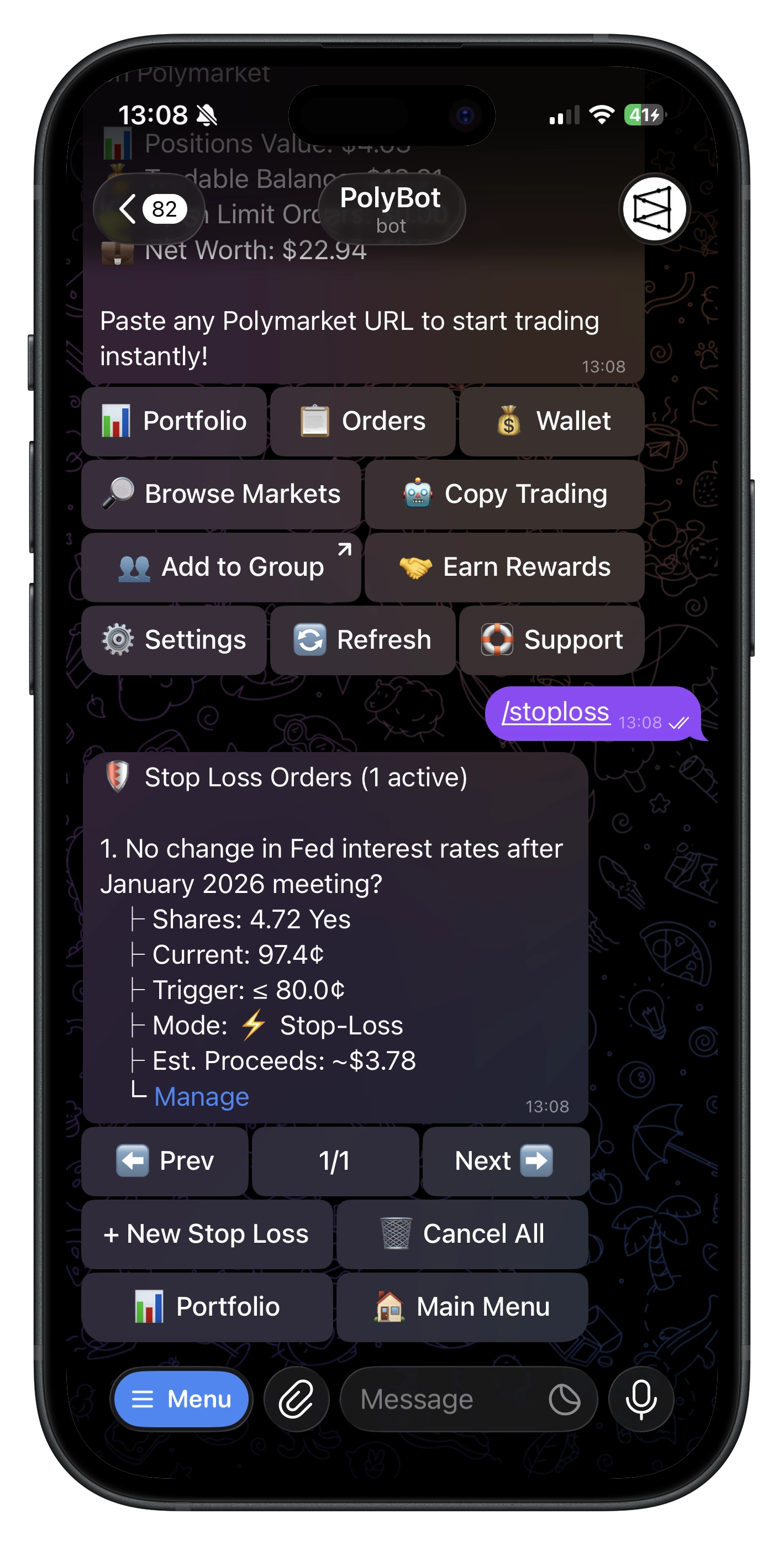
The confirmation message means the tracker was created. Open /stoploss or the Mini App's Stop Losses list and confirm it is Active. If it is not in the active list, do not assume the position is protected.
Stop loss is not always attached
A position does not automatically have a stop loss just because it was bought in PolyBot.
- A manual buy has no stop loss unless you create one.
- A preset creates protection only when that preset is actually applied to the order.
- Auto-apply works only while it is enabled and a default preset is selected.
- Copy-trading or strategy settings are configuration; check the resulting position or active stop-loss list.
- A stop can be canceled if the position closes, the market resolves, or there are no longer enough shares.
- After a stop-limit triggers, the stop tracker may leave the active list while the resulting limit sell remains under Orders.
Always verify the active order instead of relying on a remembered setting.
Shares, overlapping exits, and manual sells
PolyBot tracks how many shares are already covered by exit orders:
- Available shares = position shares − shares already covered
- You can split a position across multiple stop levels.
- Manual sells and other limit orders can reduce the shares available later.
- When execution starts, PolyBot may cancel conflicting take-profit or limit-sell orders, sell the available amount, and recreate compatible remaining orders.
- If fewer shares remain than requested, market mode may sell only the available amount. The unsold remainder can stay open or be re-armed depending on the result.
Do not assume two separate exit tools can each sell 100% of the same position.
What each status means
| Status or message | Meaning |
|---|---|
| Active | The trigger is being monitored |
| Triggered | The observed best bid crossed the threshold |
| Executing / Pending | Submission or fill reconciliation is still in progress |
| Executed | A market-style sell has confirmed fill evidence |
| Order placed | A stop-limit became a normal limit sell; placement is not a fill |
| Failed | Execution exhausted its retry path or hit a terminal error |
| Canceled / Auto-canceled | The tracker is no longer monitoring |
Open Activity Log from the stop-loss list to see executed and failed attempts. For stop-limit mode, also check Orders to see whether the resulting limit sell is still open, partially filled, filled, or canceled.
Why did my stop loss not sell?
| What you see | Likely explanation | What to check |
|---|---|---|
| The chart crossed the trigger, but the stop stayed Active | The chart price was not the live best bid used for triggering, or the displayed times differ | Compare the outcome's best bid and timestamp |
| Triggered, but the position remains | Pending reconciliation, partial fill, or a stop-limit order is still open | Notification, Activity Log, and Orders |
| Stop-limit is open below the market move | Price gapped through the limit and buyers are bidding lower | Decide whether to lower/cancel the limit or sell manually |
| Market stop filled below the trigger | The order consumed lower bid levels or bids moved after detection | Fill average and order-book depth |
| Only part of the position sold | Not enough liquidity or not all requested shares were available | Remaining position and open orders |
| Stop was auto-canceled | Position closed/resolved or available shares changed | Auto-cancel message and portfolio |
| Stop is missing | It was never attached, already triggered, canceled, or moved to an open limit order | Active Stop Losses, Activity Log, Orders |
| Stop failed | Wallet, balance, market, order-size, network, or Polymarket rejection | Failure text; consider a manual sell |
A Failed notification means the position can still be open. Check the portfolio immediately and decide whether to sell manually. Never wait for an inactive stop loss to try again by itself.
Practical risk examples
Liquid position, small size
- Entry: 50¢
- Trigger: 40¢
- Position: 20 shares
- Visible bids: hundreds of shares near 40¢
Market mode is more likely to exit near the trigger, although the result is still not guaranteed.
Thin position, large size
- Entry: 50¢
- Trigger: 40¢
- Position: 1,000 shares
- Visible bids: only 75 shares between 40¢ and 35¢
Market mode can create severe slippage or a partial fill. Stop-limit can leave most or all shares unsold. The underlying issue is position size versus liquidity; neither order type can remove it.
Gap through a stop-limit
- Trigger and limit: 40¢
- Next available best bid: 32¢
The 40¢ limit sell stays open because no buyer is offering 40¢. The price floor is respected, but the exit is not completed.
Best practices
- Size the position so a stop-loss failure is survivable.
- Inspect best-bid depth, not only the chart price.
- Treat the trigger as an alert to attempt an exit, not an exact loss ceiling.
- Use market mode when exit certainty matters more than price certainty.
- Use stop-limit only when you prefer a non-fill to selling below your floor.
- Split very large exits when appropriate.
- Recheck active stops after manual trades, preset changes, or position changes.
- Keep notifications enabled and review failed or skipped activity.
- Near market resolution, expect thinner liquidity, faster moves, and more execution risk.
Managing active stops
From /stoploss or the Mini App's Stop Losses list you can:
- review current and trigger prices;
- edit the trigger, trail, or quantity;
- cancel one stop loss;
- cancel all active stop losses;
- open the Activity Log.
Editing or canceling during execution can race with an order already being submitted. Always check the final notification, position, and Orders screen.
When contacting support
Send:
- the Polymarket market link;
- the outcome;
- approximate trigger time with timezone;
- trigger type and value;
- market or stop-limit mode;
- quantity;
- a screenshot of the stop detail and Activity Log;
- any error message or order ID.
Never send your private key or seed phrase. PolyBot support will never ask for it.
Related guides
- Presets Guide — automatically attach take-profit and stop-loss rules
- Portfolio & Orders — inspect positions and open limit orders
- Trading Guide — sell manually or manage orders
- Market Alerts — receive price alerts without automatic execution
- HFT Strategies Beta — understand the current, evolving managed-strategy catalog