Presets Guide (Exit Strategies)
Presets package reusable take-profit, stop-loss, and trailing-stop rules for eligible positions. They automate order placement and trigger monitoring; they do not guarantee that an exit will fill.
Before You Start
- What are presets? Saved exit rules that place or monitor sell attempts after they are applied to a filled position.
- Rule types: Take Profit (sell on gains), Stop Loss (limit losses), and Trailing Stop (follow upside then exit on a retrace).
- Coverage: Each rule specifies what percentage of your position to sell.
- Execution: Take-profit rules place limit orders; stop-loss and trailing-stop rules create protective stop orders.
Presets reduce manual monitoring. The actual result still depends on trigger detection, position size, open reservations, liquidity, and provider execution.
How Presets Work
- You create a preset with one or more exit rules.
- After buying a position, you apply the preset (manually or automatically).
- PolyBot places the appropriate orders:
- Take Profit: Limit sell orders at your target prices.
- Stop Loss: Protective orders that trigger if price drops.
- Trailing Stop: Protective orders that follow the high-water mark after entry.
- When a monitored trigger is reached, PolyBot attempts the configured exit. A limit order can remain open; a market-style stop can slip, partially fill, or fail.
Quick Presets
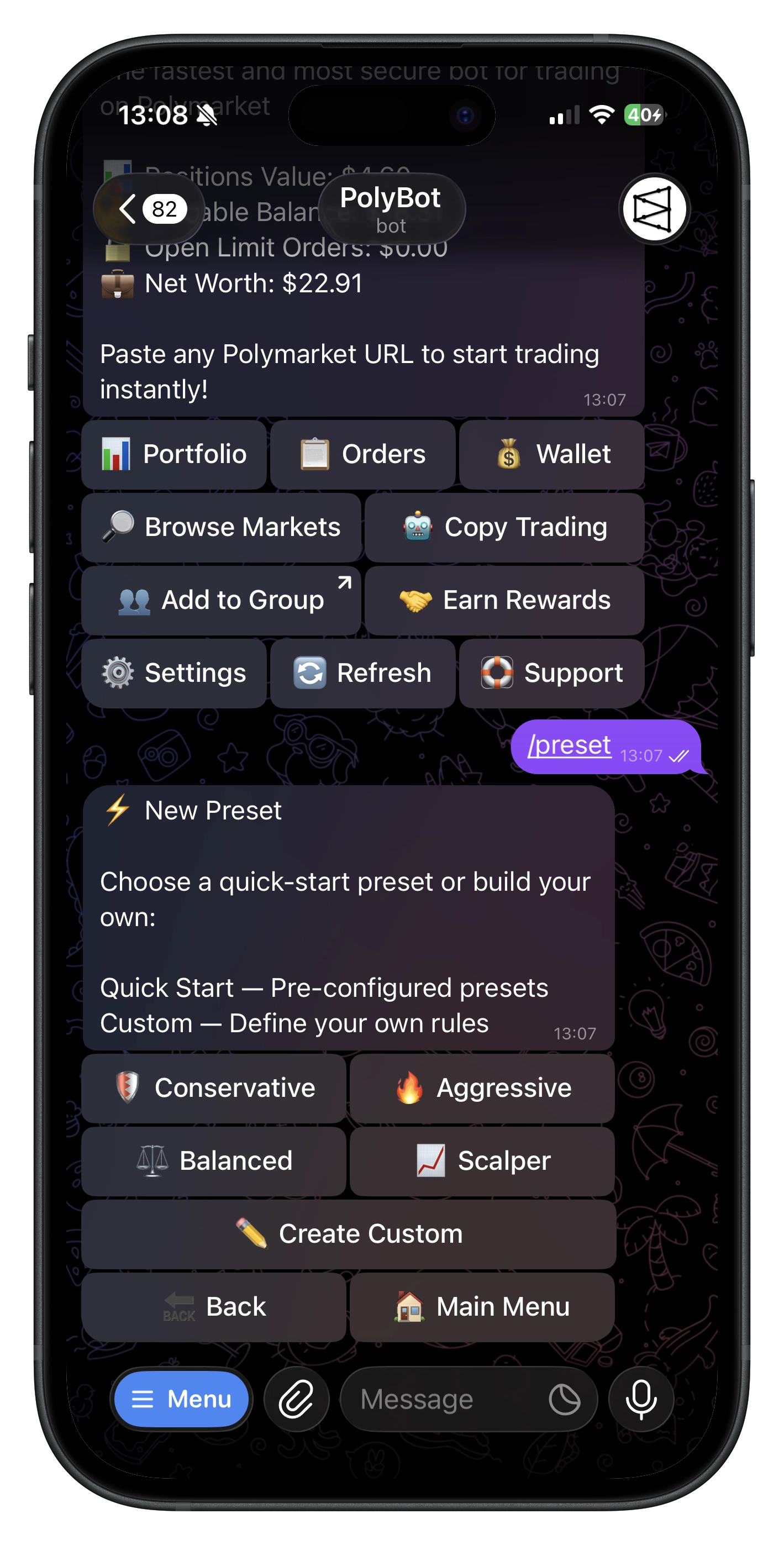
PolyBot offers four pre-built presets for common strategies:
| Preset | Take Profit | Stop Loss | Strategy |
|---|---|---|---|
| 🛡️ Conservative | +30% → Sell 100% | -20% → Sell 100% | Balanced risk/reward |
| 🔥 Aggressive | +50% → Sell 100% | -10% → Sell 100% | High targets, tight stops |
| ⚖️ Balanced | +25% → Sell 50%, +50% → Sell 50% | -15% → Sell 100% | Scale out profits |
| 📈 Scalper | +10% → Sell 100% | -5% → Sell 100% | Quick small gains |
Using a Quick Preset
- Run
/presetin Telegram or open All Tools → Presets in the Mini App. - Select one of the quick presets.
- Optionally set it as your default.
- Done! Apply it to positions after buying.
Creating Custom Presets
Build your own exit strategy with custom rules.
Step 1: Start Creation
- Run
/presetor go to Presets → New Preset in Telegram or the Mini App. - Choose ✏️ Create Custom.
Step 2: Name Your Preset
Enter a name (e.g., "My Strategy", "Crypto Exits").
Step 3: Add Rules
For each rule, specify:
- Rule Type: Take Profit, Stop Loss, or Trailing Stop
- Trigger / trail %: When to trigger (e.g., +25% for TP, -15% for SL, 10% trail for trailing stop)
- Sell %: How much of your position to sell (25%, 50%, 75%, or 100%)
Take Profit Triggers: +10%, +25%, +50%, +100%, +150%, +200%, +300% (or custom)
Stop Loss Triggers: -5%, -10%, -15%, -20%, -25%, -30% (or custom)
Trailing Stop Distances: 5%, 10%, 15%, 20%, 25%, 30% (or custom)
Step 4: Review Coverage
The coverage bar shows how much of your position is allocated:
🔒 Position Coverage:
├ TP: ████████░░ 80%
└ SL: ██████████ 100%
- Each rule type (TP and SL) can total up to 100%.
- You can have multiple TP rules that add up (e.g., 50% at +25%, 50% at +50%).
Step 5: Save
- Tap ✅ Done when finished adding rules.
- Choose whether to set as default.
Understanding Rules
Take Profit Rules
Sell when price increases by a percentage from your entry.
Example: Buy at 50¢, set +20% take profit.
- Target price: 50¢ × 1.20 = 60¢
- At 60¢, the take-profit limit order becomes executable if it has sufficient queue priority and matching liquidity.
Multiple Take Profit Rules:
📈 Take Profit:
   • At +25% → Sell 50%
   • At +50% → Sell 50%
This scales out — sell half at +25%, remaining half at +50%.
Stop Loss Rules
Sell when price decreases by a percentage from your entry.
Example: Buy at 50¢, set -20% stop loss.
- Trigger price: 50¢ × 0.80 = 40¢
- If price drops to 40¢, the stop triggers an exit attempt.
The trigger price is not a guaranteed fill price. Depending on the selected execution mode, a stop can accept worse prices or enforce protection that causes no fill. See the Stop-Loss Guide.
Trailing Stop Rules
Sell after the price rises and then retraces by your trail distance.
Example: Buy at 50¢, set a 10% trailing stop.
- Price climbs to 70¢ → high-water mark is 70¢ and trailing floor is 63¢.
- Price climbs to 80¢ → floor moves to 72¢.
- Price falls to 72¢ → trailing stop triggers an exit attempt.
Trailing stops are useful when you want to ride upside without manually moving a fixed stop.
Applying Presets
Manual Application (After Buy)
After completing a market buy, a carousel appears:
- Browse your presets using ⬅️ Prev / Next ➡️.
- Tap 📈 Details to view the rules.
- Tap ✅ Apply to activate the preset.
- Or tap ➡️ Skip to not apply any preset.
Auto-Apply Default Preset
Have your default preset apply automatically to every purchase:
- Go to ⚙️ Settings.
- Enable Auto-Apply Preset.
- The default preset is then applied to eligible new filled positions.
Set a default preset and enable auto-apply to reduce manual setup, then monitor Orders and Stop Losses for the actual status.
Managing Presets
Viewing Your Presets
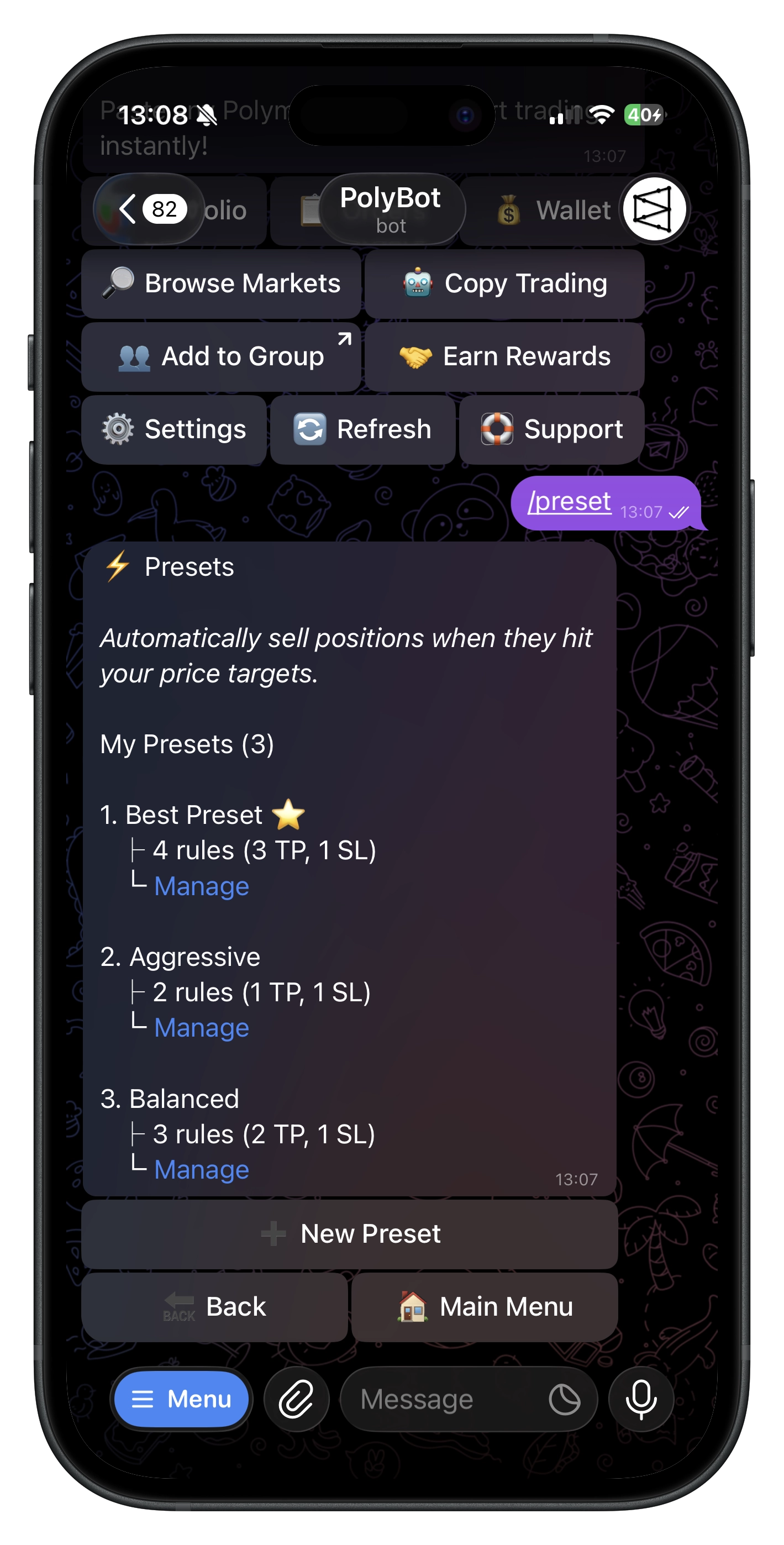
- Command:
/preset. - See all presets with rule counts.
- Default preset is marked with ⭐.
Editing a Preset
- Open the preset.
- Tap ✏️ Edit Rules.
- Modify, add, or remove rules.
- Changes are saved automatically.
Setting a Default
- Open the preset.
- Tap ⭐ Set as Default.
- This preset will appear first in the carousel and be used for auto-apply.
Renaming a Preset
- Open the preset.
- Tap 🏷️ Rename.
- Enter the new name.
Deleting a Preset
- Open the preset.
- Tap 🗑️ Delete.
- Confirm deletion.
Deleting a preset does not cancel orders that were already placed. Those orders remain active until filled or manually canceled.
Active Presets & Orders
When you apply a preset:
- Take Profit orders are placed as limit sell orders on the Polymarket orderbook.
- Stop Loss orders are created as protective orders monitored by PolyBot.
- Trailing Stop orders are monitored by PolyBot and update from the position's high-water mark.
Viewing Active Orders
- Go to 📈 Limit Orders to see your take-profit limit orders.
- Go to 🛡️ Stop Loss to see your stop-loss and trailing-stop orders.
Canceling Applied Presets
If you want to cancel all orders from an applied preset:
- Go to your portfolio position.
- The applied preset is shown.
- Cancel individual orders or the entire preset.
Price Calculations
Take Profit Target Price
Target Price = Entry Price × (1 + Trigger% / 100)
Examples (Entry at 50¢):
| Trigger | Calculation | Target |
|---|---|---|
| +25% | 50 × 1.25 | 62.5¢ |
| +50% | 50 × 1.50 | 75¢ |
| +100% | 50 × 2.00 | 100¢ (invalid*) |
*Prices must be between 1¢ and 99¢. Rules with invalid target prices are skipped.
Stop Loss Trigger Price
Trigger Price = Entry Price × (1 - |Trigger%| / 100)
Examples (Entry at 50¢):
| Trigger | Calculation | Target |
|---|---|---|
| -10% | 50 × 0.90 | 45¢ |
| -20% | 50 × 0.80 | 40¢ |
| -30% | 50 × 0.70 | 35¢ |
Constraints & Limits
| Constraint | Value |
|---|---|
| Max coverage per rule type | 100% |
| Trailing-stop quick distances | 5%, 10%, 15%, 20%, 25%, 30% |
| Minimum shares per order | 5 shares |
| Valid price range | 1¢ – 99¢ |
| Rules with invalid prices | Automatically skipped |
What Happens with Small Positions?
- If a rule would result in fewer than 5 shares, that order is skipped.
- Example: You hold 8 shares, rule says sell 50% (4 shares) — order is skipped because 4 < 5.
Commands
| Command | What It Does |
|---|---|
/preset | Open presets menu |
Example Strategies
Conservative Long-Term
Good for positions you expect to grow steadily:
Take Profit: +50% → Sell 100%
Stop Loss: -25% → Sell 100%
Scale-Out Strategy
Lock in profits progressively:
Take Profit: +20% → Sell 33%
Take Profit: +40% → Sell 33%
Take Profit: +60% → Sell 34%
Stop Loss: -15% → Sell 100%
Tight Risk Management
For volatile markets:
Take Profit: +15% → Sell 100%
Stop Loss: -10% → Sell 100%
Troubleshooting
- Preset not applying: Ensure you have a position and the preset has valid rules for your entry price.
- Order not placed: Check if calculated shares meet the 5-share minimum.
- Invalid target price: Prices outside 1¢–99¢ are invalid. Adjust your trigger percentage.
- Auto-apply not working: Verify auto-apply is enabled in Settings and you have a default preset set.
- Orders still active after deleting preset: Deleting a preset doesn't cancel existing orders — cancel them manually.
Related Guides
- Stop Loss Guide — Standalone stop-loss orders
- Trading Guide — Manual trading and limit orders
- Portfolio Guide — Managing your positions