Trading Guide
PolyBot supports manual trading in Telegram and the Mini App. Both use the same account and Polygon Safe, but their controls are not identical.
Before you trade
- Trading uses your pUSD tradable balance.
- Funds reserved by limit orders or allocated to managed strategies are not freely available.
- Normal wallet transactions use sponsored gas, but provider and blockchain failures remain possible.
- Every displayed price and share count is a snapshot or estimate until an order fills.
See Wallet to fund the deposit address shown in the live picker.
Find a market
In Telegram:
- Paste a supported Polymarket URL; or
- open Browse Markets / run
/search; then - choose a market and outcome.
In the Mini App, open Trade, browse/search, and open the market detail page. The detail can include prices, chart data, order-book information, volume, and liquidity.
For categorical markets, choose the exact named outcome rather than assuming the first two choices mean Yes/No.
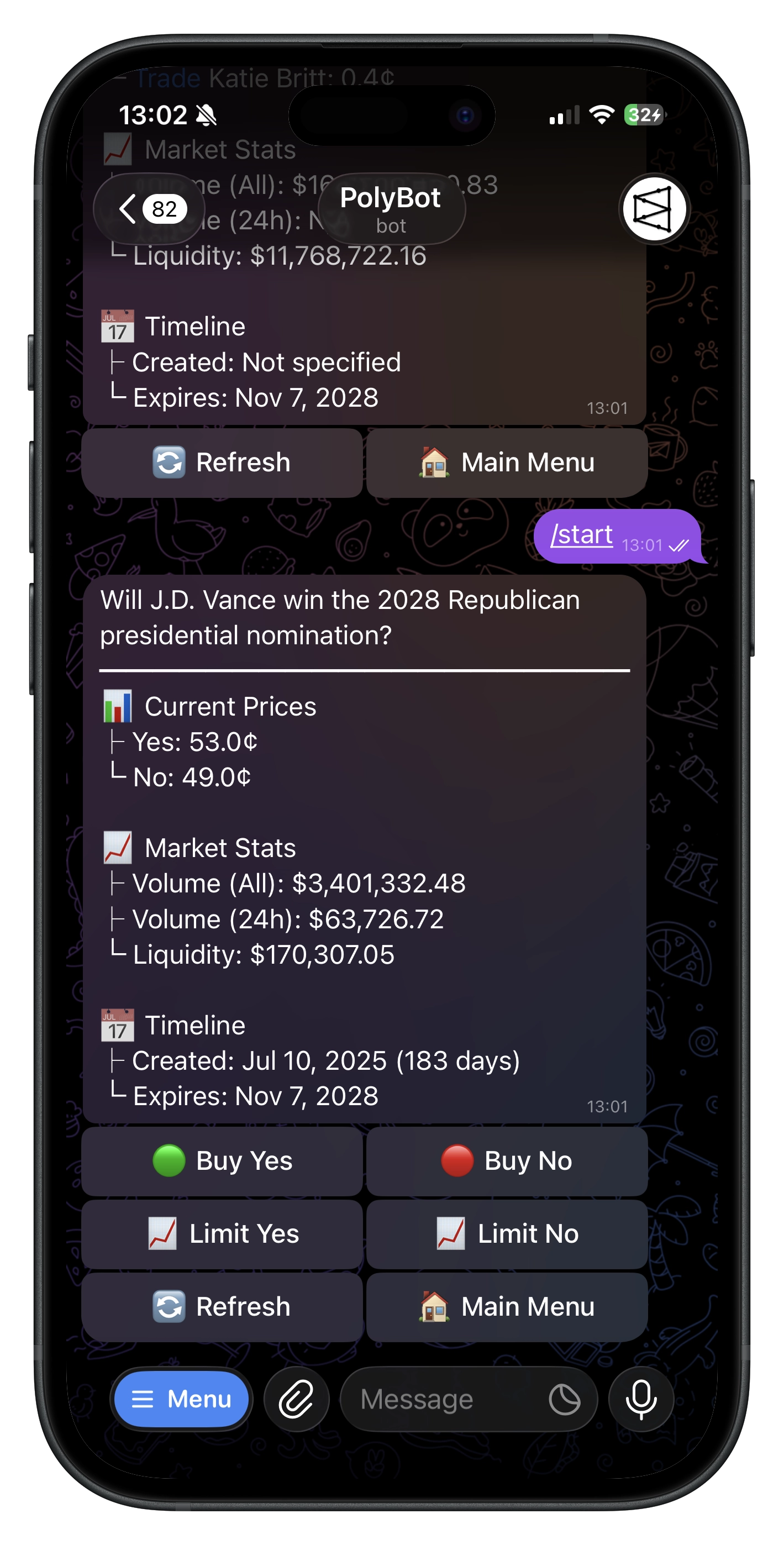
Market buys
- Choose the outcome to buy.
- Select a quick-buy amount or enter a custom dollar amount.
- Review the amount, effective fee, current/estimated price, and estimated shares.
- Confirm unless your selected trading mode permits auto-submission.
- Check Portfolio and order status for the actual fill.
PolyBot submits the order to the Polymarket CLOB. “Submitted” does not guarantee a full fill. The book can move, so the final result may be a different average price, partial fill, rejection, or no fill.
Minimum amounts are validated by the active interface and market. Use the value displayed in the current flow rather than an old screenshot.
Market sells
- Open
/portfolioor the Mini App Portfolio tab. - Select an open position and choose Sell.
- Choose 25%, 50%, 75%, 100%, or a custom number of available shares.
- Review the latest estimate and submit.
The actual proceeds depend on bids available when the sell executes. The current mark price is not a guaranteed exit price.
Shares reserved by open limit sells
An open limit sell reserves shares so another action cannot spend them twice.
In Telegram, if matching open limit sells reserve shares, PolyBot shows:
- Back — keep the open orders and do not market-sell; or
- Cancel & Sell Now — cancel the matching open sells, verify that the shares are released, and then submit the market sell.
If PolyBot cannot safely cancel and verify every required reservation, it does not submit the market sell. Review /orders, refresh, and try again.
Sell all
Telegram Portfolio can offer Sell All for open positions. Review the confirmation carefully. Each position is still subject to available shares, reservations, market status, and liquidity, so a bulk action can complete only partially.
Limit orders
Limit buy
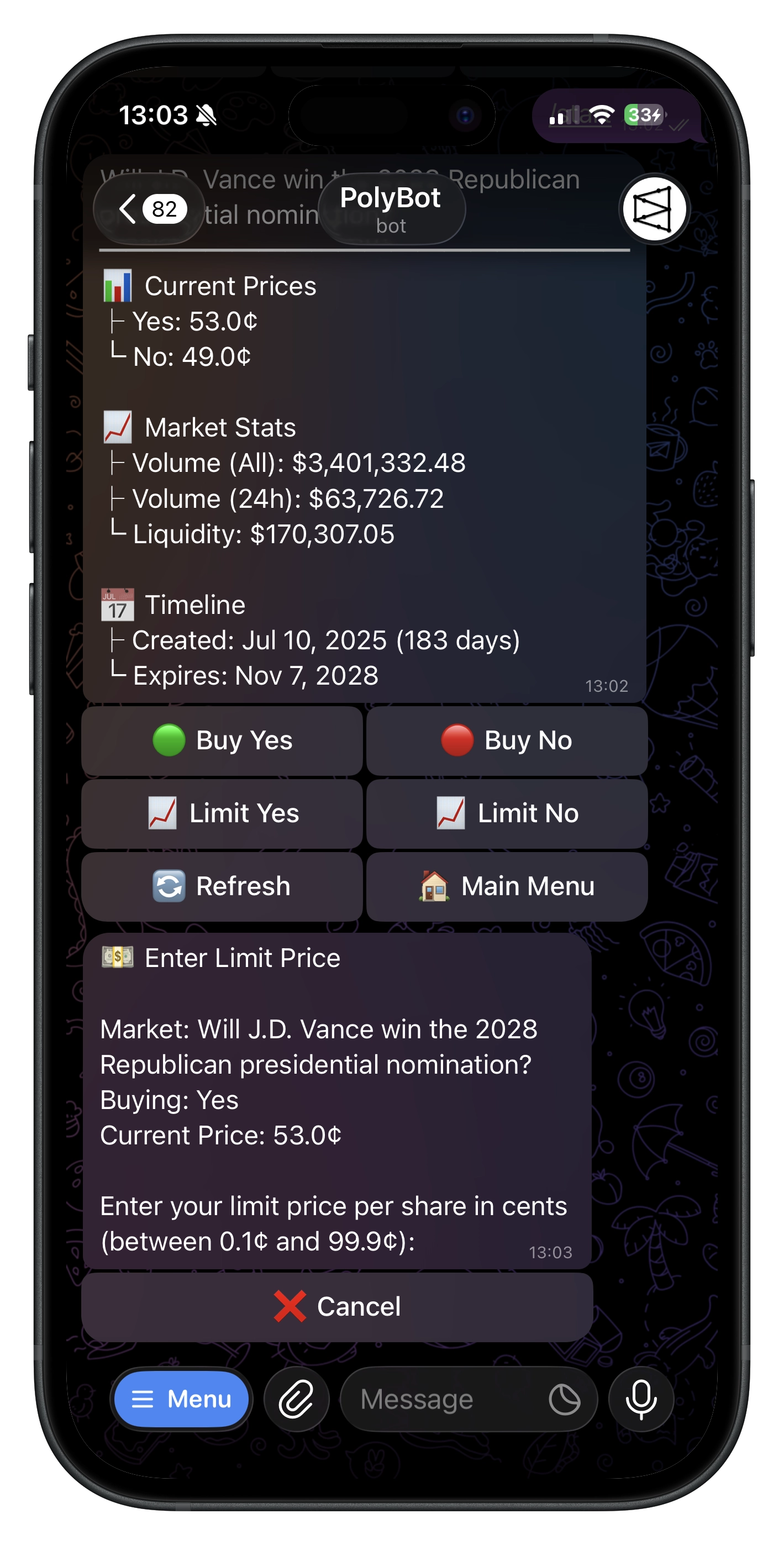
- Choose Limit for an outcome.
- Enter the highest price you accept.
- Enter the dollar amount.
- Review approximate shares, total, and any warning that the order may cross the current book.
- Submit the GTC order.
Limit sell
- Open a position and choose Limit Sell.
- Enter a price and number of shares accepted by the current flow.
- Review gross value, fee, and estimated net proceeds.
- Submit the GTC order.
GTC means the order stays active until filled or canceled, subject to market/provider rules. A price-protected order may never fill.
Manage orders
Open /orders in Telegram or All Tools → Limit Orders in the Mini App.
You can review:
- side, outcome, price, size, and status;
- filled versus remaining quantity;
- value reserved by the order;
- individual cancel actions; and
- Telegram's guarded Cancel all flow.
Partial fills remain executed; cancellation applies only to the unfilled remainder. Refresh after canceling because CLOB response and local indexing are separate stages.
Optional single-command trading
Telegram supports an opt-in shortcut:
/trade <polymarket_url> <outcome> <amount> [max_price=<decimal>]
Example:
/trade https://polymarket.com/event/example Up 10 max_price=0.57
Enable it under Settings → Trading → Single-Command Trade. The command resolves the market/outcome and starts a market buy without the normal multi-step confirmation flow. max_price, when provided, must be between 0 and 1 and caps the accepted buy price.
/trade deliberatelyTypos, ambiguous outcomes, and fast price movement carry real risk. max_price reduces price risk but also increases the chance of no fill. Omitting it does not guarantee execution.
See Commands for aliases and supported outcome forms.
Trading modes
- Standard — normal confirmation for market orders.
- Fast — auto-submits eligible market orders at or below your configured threshold.
- Ludicrous — submits eligible market orders without a confirmation step.
Trading mode changes the confirmation experience, not liquidity or execution guarantees. See Settings.
Prices, liquidity, and slippage
- Market price/mark is an indicator derived from available market data.
- Order book is the current set of bids and asks.
- Liquidity is how much can trade near the shown price.
- Slippage is the difference between the expected and actual fill.
A market order accepts more price uncertainty to improve execution probability. A limit order protects price but may not execute. The Stop-Loss Guide explains these mechanics for beginners.
Troubleshooting
- Order rejected — verify market status, amount, available balance, price protection, and liquidity.
- Partial fill — only part of the requested size found acceptable liquidity.
- Canceled order still visible — refresh after the provider cancellation indexes.
- Cannot sell — review reserved shares, strategy exits, stop losses, and market status.
- Deposit not visible — verify the live deposit route and wait for confirmation/conversion.